Unknown Apple Charges on Credit Card [Uncovered]


Unknown Apple charges on credit card statements can come from App Store purchases, subscriptions, in-app purchases, music, movies, or other Apple services. They may also represent several smaller purchases combined into one transaction.
Seeing an unfamiliar Apple charge doesn’t automatically mean your card was stolen. Start by checking your Apple purchase history, subscriptions, and family purchases before deciding whether the transaction is unauthorized.
What Are Unknown Apple Charges on Credit Card Statements?
Unknown Apple charges on credit card statements are transactions that appear to come from Apple but don’t immediately match a purchase you remember making.
Apple says a charge listed as apple.com/bill can relate to apps, subscriptions, music, movies, and other Apple purchases.
Apple purchases may also appear under descriptors such as itunes.com/bill on some statements.
The exact statement description may vary by purchase type and financial institution.
A charge may be connected with:
- An App Store purchase
- An in-app purchase
- An Apple subscription
- A third-party subscription billed through Apple
- Apple Music
- Apple TV content or services
- iCloud+
- Apple Arcade
- Books or other digital content
- A purchase by a family member
- Several Apple purchases grouped into one bill
Your Apple purchase history is usually the best place to start identifying the transaction.
Why Does APPLE.COM/BILL Appear on My Card?
APPLE.COM/BILL is a billing descriptor Apple uses for purchases made through its media and digital services.
You may see that wording rather than the specific app, game, subscription, or movie you purchased.
For example, buying an app from a third-party developer through the App Store can still result in an Apple billing descriptor because Apple handled the payment.
Apple confirms that apple.com/bill charges may relate to apps, subscriptions, music, movie purchases, and other Apple services.
That makes the descriptor legitimate, but you should still verify any charge you don’t recognize.
Apple May Combine Multiple Purchases Into One Charge
One common source of confusion is grouped billing.
Apple says multiple purchases and subscriptions may be combined into a single bill. This means the amount appearing on your credit card may not match any one purchase in your memory.
For example, you might make several small purchases on different days and later see one larger Apple transaction on your statement.
Apple also notes that charges can sometimes appear several days after the original purchases.
This timing difference can make a legitimate transaction look unfamiliar.
If the amount doesn’t match one obvious purchase, review several recent transactions rather than searching only for one item with the same price.
How to Check Your Apple Purchase History
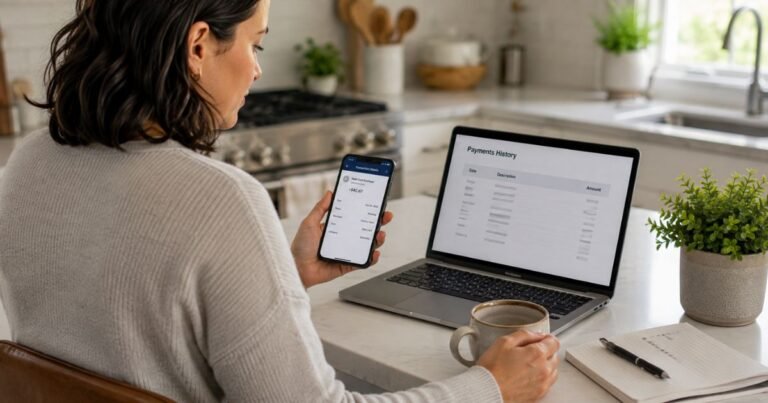
Apple provides an online purchase-history tool that can help identify unknown transactions.
You can visit reportaproblem.apple.com, sign in with your Apple Account, and view purchases associated with that account.
Apple says you can also search your purchase history by the amount charged if you know the value shown on your statement.
On an iPhone, you can also review purchase history through the App Store.
Apple’s current instructions generally involve:
- Open the App Store.
- Tap your photo or account button.
- Open Apps & Purchase History.
- Tap Purchase History.
- Search or filter the transactions.
Purchase history can include apps, subscriptions, music, videos, books, in-app purchases, and other Apple purchases.
Compare the transaction date and amount with your credit card statement.
Check Your Apple Subscriptions
A recurring subscription is another common reason an Apple charge appears unexpectedly.
You may have signed up for an app or service months ago and forgotten that it renews automatically.
Apple allows you to view and manage subscriptions purchased directly from Apple as well as eligible subscriptions purchased through App Store apps.
Check for services you no longer actively use.
Common examples may include:
- Cloud storage
- Streaming apps
- Fitness apps
- Dating apps
- Photo or video editing tools
- Productivity apps
- Games
- News services
- Learning apps
If you find the subscription responsible for the charge, canceling it can generally stop future renewals.
Apple specifically advises customers to cancel subscriptions they no longer want after identifying an unexpected charge.
Canceling a subscription doesn’t necessarily reverse a payment that already occurred.
Could a Family Member Have Made the Purchase?
Yes. Family Sharing can explain an Apple charge you don’t recognize.
If Purchase Sharing is enabled, purchases made by other family members may sometimes be billed to the family organizer’s payment method.
Apple says the family organizer’s payment method may be charged when Purchase Sharing is turned on, depending on whether the purchasing family member has another valid payment method or account balance available.
If you’re the organizer, review purchases for everyone in your Family Sharing group.
Apple says you can select family members while reviewing charges to see purchases associated with them.
You should also ask family members directly if they purchased an app, game, subscription, or in-app item.
This is especially useful if children use devices connected with your Family Sharing group.
What If You Have More Than One Apple Account?
Check every Apple Account you use.
Apple says an item may not appear in your current purchase history if it was purchased using another Apple Account.
This can happen if you:
- Changed email addresses
- Created an older Apple Account years ago
- Use separate accounts for work and personal devices
- Previously shared an account with someone else
- Signed into Media & Purchases with another account
Sign in to each account you legitimately use and compare its purchase history with the credit card transaction.
Search Your Email for Apple Receipts
Apple receipts may help you connect a statement charge with its actual purchase.
Search the email address linked to your Apple Account for terms such as:
- “Apple”
- “receipt”
- “invoice”
- “App Store”
- The exact amount
- The app or subscription name
Apple notes that one email receipt can sometimes contain multiple purchases.
Make sure any receipt you rely on is legitimate.
An unexpected email saying you purchased something doesn’t prove that a real transaction occurred. Apple warns that suspicious purchase emails can be fraudulent and recommends checking your actual purchase history instead.
Avoid clicking links in suspicious billing emails.
Why Is the Apple Charge Higher Than Expected?
A larger-than-expected Apple transaction may be caused by grouped billing.
Several apps, subscriptions, or in-app purchases can sometimes be combined into one total.
Another possibility is a subscription renewal.
The amount may also differ because a subscription changed price or because you purchased additional content within an app.
Compare the card charge against several recent purchases rather than assuming there should be one matching transaction.
Your Apple purchase history can usually provide a clearer breakdown than your credit card statement.
Can You Request a Refund From Apple?
Some Apple purchases may qualify for a refund.
Apple directs customers to its Report a Problem service to review purchases and request refunds when eligible.
Refund eligibility depends on the transaction and circumstances.
A refund isn’t guaranteed simply because you no longer want an app or subscription.
If the transaction is a subscription you intend to stop using, review both the refund request and cancellation options. Canceling future renewal and requesting a refund are separate actions.
What to Do If You Still Don’t Recognize the Charge
Work through the transaction systematically before assuming fraud.
Use this checklist:
- Check the exact amount and date. Note that Apple may post charges after the original purchase date.
- Review your Apple purchase history. Search by amount if necessary.
- Check active and recently renewed subscriptions.
- Look for grouped purchases. Several smaller transactions may equal the statement amount.
- Review Family Sharing purchases. Ask family members whether they recognize the payment.
- Check other Apple Accounts you use.
- Search your email for legitimate Apple receipts.
- Request a refund if appropriate.
- Contact Apple Support if the charge remains unclear.
- Contact your credit card issuer if you believe the charge was unauthorized.
Use your bank’s official app, website, or the phone number printed on the back of your card.
Your issuer can explain its dispute procedure and determine whether your card should be locked or replaced.
Should You Replace Your Credit Card?
Not automatically.
If you identify the charge as a legitimate Apple subscription, family purchase, or App Store transaction, card replacement usually isn’t necessary for fraud prevention.
If you can’t find the transaction in any Apple Account and nobody authorized to use the card recognizes it, contact your card issuer promptly.
Also consider changing your Apple Account password if you believe someone else gained access to your account.
Apple specifically recommends changing the Apple Account password if someone else may be using your account credentials.
Never share your full credit card number, CVV, Apple Account password, or verification codes while investigating a charge online.
FAQs About Unknown Apple Charges on Credit Card
Q. What does APPLE.COM/BILL mean on my credit card?
A. APPLE.COM/BILL generally indicates an Apple digital purchase, such as an app, subscription, music, movie, or other Apple service.
Q. Why can’t I find an Apple charge for the exact amount?
A. Apple may group several purchases or subscriptions into one charge. The card transaction can also appear a few days after the individual purchases.
Q. Can my child’s Apple purchase appear on my credit card?
A. Yes. If you’re using Family Sharing with Purchase Sharing enabled, eligible purchases made by family members may be charged to the family organizer’s payment method.
Q. What should I do if I never authorized the Apple charge?
A. Check your purchase history, subscriptions, family purchases, and other Apple Accounts first. If you still can’t identify it, contact Apple and your credit card issuer through their official channels.
Conclusion
Unknown Apple charges on credit card statements often turn out to be apps, subscriptions, grouped purchases, or Family Sharing transactions. Apple recommends checking your purchase history and searching by the charge amount to identify unfamiliar transactions.
If you still can’t match the charge to anything you or an authorized family member purchased, contact Apple Support and your card issuer promptly.
Disclaimer
This content is for informational purposes only and isn’t financial or legal advice. Billing descriptors, refund eligibility, subscription terms, fraud procedures, and card issuer practices may vary. For account-specific questions, verify the transaction directly with Apple, the relevant merchant, your financial institution, or your credit card issuer.