1 Infinite Loop Charge On Bank Statement [Uncovered]

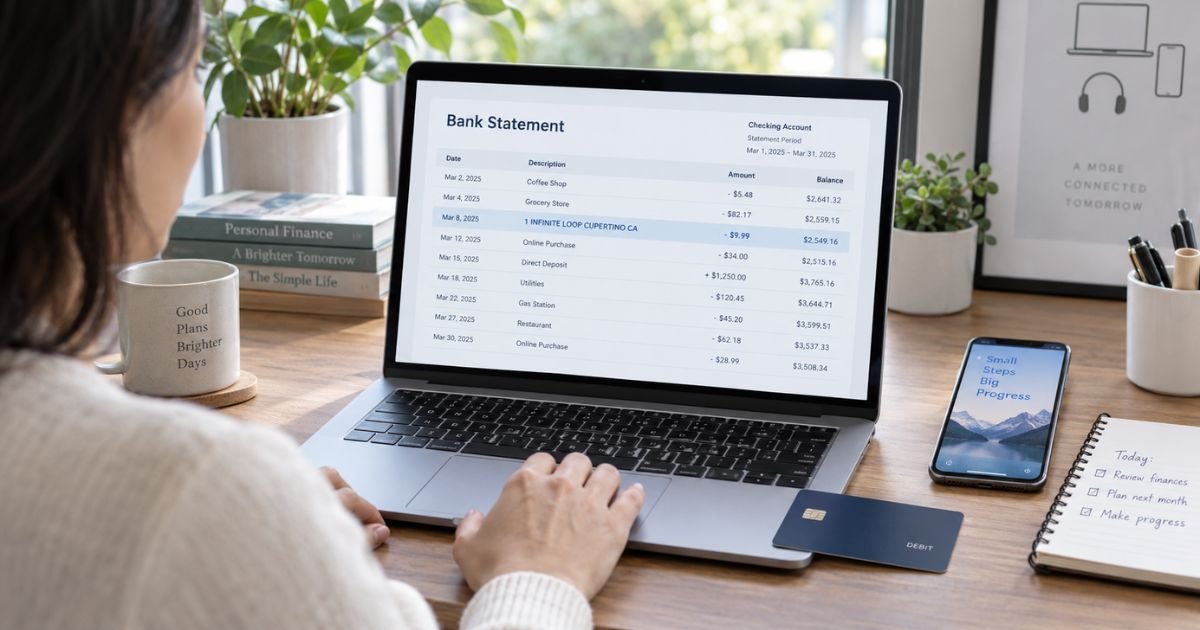
A 1 Infinite Loop charge on bank statement entries may be connected with Apple Inc. The address 1 Infinite Loop, Cupertino, CA 95014 is an official Apple address that still appears in Apple legal and warranty documents.
That does not automatically tell you what you bought. You may need to check your Apple purchase history, subscriptions, receipts, and family purchases to identify the exact transaction.
What Is a 1 Infinite Loop Charge On Bank Statement?
1 Infinite Loop is an Apple Inc. address in Cupertino, California.
Apple’s own legal documents list Apple Inc., 1 Infinite Loop, Cupertino, CA 95014, U.S.A. for the United States and certain other regions. Apple Maps also identifies the location as part of the Apple Infinite Loop campus.
If that address appears on your statement, the charge may relate to an Apple purchase or service.
Possible sources include:
- App Store purchases
- In-app purchases
- Apple subscriptions
- Apple Music
- Apple TV
- iCloud-related services
- AppleCare+
- Books or other digital media
- Hardware or accessories purchased from Apple
- A purchase made by a family member
- Several Apple purchases grouped into one bill
The address alone does not identify which one caused your transaction.
Why Does the Statement Show an Address Instead of Apple?
Bank statements do not always display transaction information in a simple format.
Your bank may show a merchant name, address, city, phone number, payment processor, or a combination of these details.
That means an Apple-related transaction could emphasize location information such as:
1 INFINITE LOOP CUPERTINO CA
instead of clearly displaying the name of the product or subscription.
Apple confirms that 1 Infinite Loop is one of its addresses, but Apple does not publicly state that every statement containing this address is automatically an Apple transaction.
You should therefore verify the charge against your own Apple records.
What Types of Apple Purchases Should You Check?
Start with digital purchases because they are easy to forget.
Apple says your purchase history can include:
- Paid apps
- In-app purchases
- Subscriptions
- Music
- Videos
- Books
- AppleCare+
- Other purchased content
You can review these through your Apple purchase history.
You should also think about physical purchases.
If you recently bought an iPhone, Mac, iPad, accessory, or other product directly from Apple, compare the charge with your receipt or order confirmation.
How to Check Your Apple Purchase History
Apple provides an official tool for reviewing purchases.
Go to reportaproblem.apple.com and sign in with your Apple Account. Apple says you can search your purchase history by the amount charged if you do not know what the payment was for.
On an iPhone, you can also:
- Open the App Store.
- Tap your photo or account button.
- Open Apps & Purchase History.
- Tap Purchase History.
- Search by price, order ID, or other details.
Apple says the purchase history can include apps, subscriptions, music, media, AppleCare+, and more.
Compare the transaction amount and date with your bank statement.
Check Your Apple Subscriptions
A forgotten subscription is another common explanation.
Apple allows you to manage subscriptions from your device.
On an iPhone, the current steps are:
- Open Settings.
- Tap your name.
- Tap Subscriptions.
- Review your active and expired subscriptions.
You can cancel an active subscription from the same screen.
Look especially for:
- Apple Music
- Apple TV+
- iCloud+
- Apple Arcade
- Fitness apps
- Dating apps
- Streaming services
- Productivity tools
- Photo or video apps
- Games
- Other third-party subscriptions purchased through the App Store
A third-party service can still produce an Apple-related billing transaction if you subscribed through Apple.
Could Several Purchases Be Grouped Together?
Yes.
Apple says multiple purchases and subscriptions may be combined into a single bill.
This can make the amount on your bank statement hard to match.
For example, you might have:
- One app purchase
- One in-app purchase
- One subscription renewal
Apple may group them into one transaction rather than showing three separate card charges.
If the amount does not match one item, add up several recent Apple purchases.
Could a Family Member Have Made the Purchase?
Yes.
Apple advises checking with family members when you see an unexpected purchase in your account history.
If you use Family Sharing, a purchase may have been made by another person in your family group.
Apple’s purchase history on iPhone can also be filtered by family member when you are the Family Sharing organizer.
Ask:
- Your spouse
- Children
- Other family members
- Anyone with access to the device
- Anyone who knows your Apple Account credentials
A family purchase is often easier to identify once you know the app or subscription involved.
What If You Have More Than One Apple Account?
Check all of them.
Apple says a transaction might not appear in your current purchase history if you used another Apple Account for the purchase.
This can happen if you:
- Changed email addresses
- Have an older Apple Account
- Use a separate account for media purchases
- Previously shared an account
- Use different Apple Accounts on different devices
Sign in to each account you legitimately use and search by the transaction amount.
Search Your Email for Apple Receipts
Your email can provide another clue.
Search for terms such as:
- “receipt from Apple”
- “invoice from Apple”
- “App Store”
- The exact charge amount
- The approximate transaction date
- The name of a subscription or app
Apple recommends checking email receipts when you cannot find a subscription or purchase.
However, be careful with unexpected billing emails.
A fake Apple receipt can be a phishing attempt. Verify the transaction through your actual Apple Account instead of clicking a suspicious link.
How to Cancel an Apple Subscription
If the charge is from a subscription you no longer want, canceling can generally stop future renewals.
Apple’s current iPhone instructions are:
- Open Settings.
- Tap your name.
- Tap Subscriptions.
- Select the subscription.
- Tap Cancel Subscription.
If there is no cancel button and the screen shows an expiration message, Apple says the subscription is already canceled.
Keep in mind that some newer subscription plans can have commitment periods.
Apple introduced certain monthly subscriptions with a 12-month commitment in supported regions and services. Canceling during that commitment can stop renewal after the commitment ends, but remaining scheduled payments may still continue.
Always check the specific subscription terms.
Can You Request a Refund?
Some Apple purchases may qualify.
Apple directs users to reportaproblem.apple.com to review purchases and request refunds when eligible.
Refund approval is not automatic.
Eligibility can depend on:
- Purchase type
- Country or region
- Timing
- Subscription terms
- Whether the product has been used
- Other transaction circumstances
Canceling a subscription and requesting a refund are also separate actions.
Canceling generally prevents future renewals, while a refund request concerns money already charged.
Is a 1 Infinite Loop Charge Fraud?
Not necessarily.
The address itself is genuinely associated with Apple Inc.
However, a legitimate company address can still appear on a transaction you did not authorize.
Investigate further if:
- You cannot find a matching Apple purchase.
- You have no relevant subscriptions.
- Nobody in your family recognizes the transaction.
- You do not use Apple products or services.
- Several unfamiliar Apple-related charges appear.
- You suspect someone accessed your Apple Account.
Apple says that if someone else is using your Apple Account and password, you should change your Apple Account password.
What to Do If You Don’t Recognize the Charge
Work through the charge in this order:
- Check the full transaction description. Note whether it includes Apple, Cupertino, 1 Infinite Loop, or other identifying text.
- Compare the amount and date. Check recent Apple purchases and subscriptions.
- Search Apple purchase history. Use the amount to locate possible matches.
- Review active subscriptions. Look for recurring monthly or annual payments.
- Check other Apple Accounts. The purchase may belong to another account you use.
- Ask family members. Another authorized user may have made the purchase.
- Search your email for Apple receipts.
- Cancel an unwanted subscription. Save any confirmation.
- Request a refund if appropriate. Use Apple’s official Report a Problem service.
- Contact your bank if the transaction remains unauthorized. Use the official banking app, website, or number printed on your card.
Your financial institution can explain its dispute process and advise whether your card should be locked or replaced.
Should You Replace Your Debit or Credit Card?
Not automatically.
If you identify the 1 Infinite Loop charge as a legitimate Apple purchase, there is usually no reason to replace your card simply because the descriptor was unfamiliar.
If the transaction was not authorized, contact your bank promptly.
Your bank may recommend:
- Locking the card
- Replacing the card number
- Filing a dispute
- Monitoring recent activity
- Changing online banking credentials
If you suspect someone gained access to your Apple Account, change the Apple Account password as well.
Never post your full card number, CVV, PIN, passwords, or one-time security codes online while investigating a charge.
FAQs About 1 Infinite Loop Charge On Bank Statement
Q. What is 1 Infinite Loop on my bank statement?
A. 1 Infinite Loop is an Apple Inc. address in Cupertino, California. A statement containing that address may be connected with an Apple purchase or service, but you should verify the exact transaction through your Apple purchase history.
Q. Is 1 Infinite Loop still connected with Apple?
A. Yes. Apple’s current legal and warranty materials still list Apple Inc. at 1 Infinite Loop, Cupertino, CA 95014 for certain purposes and regions.
Q. How can I find what Apple charged me for?
A. Sign in at reportaproblem.apple.com and review your purchase history. Apple says you can search by the exact amount charged if you do not recognize the purchase.
Q. What should I do if I never authorized the charge?
A. Check purchase history, subscriptions, other Apple Accounts, and family purchases first. If the transaction remains unexplained, contact Apple through official support and notify your bank if you believe the payment was unauthorized.
Conclusion
A 1 Infinite Loop charge on bank statement entries may be related to Apple because 1 Infinite Loop, Cupertino, CA 95014 is an official Apple Inc. address. The charge could come from an app, subscription, digital purchase, AppleCare+, hardware purchase, or another Apple-related transaction.
Check your Apple purchase history, active subscriptions, receipts, other Apple Accounts, and family purchases. If you still cannot identify the payment and believe it was unauthorized, contact Apple and your financial institution through official channels.
Disclaimer
This content is for informational purposes only and isn’t financial or legal advice. Billing descriptors, refund rules, subscription terms, Apple policies, and bank procedures may vary. For questions about a specific charge, verify the transaction directly with Apple, the relevant merchant, your financial institution, or your card issuer.