Google Play Mountain View Charge on Credit Card [Uncovered]

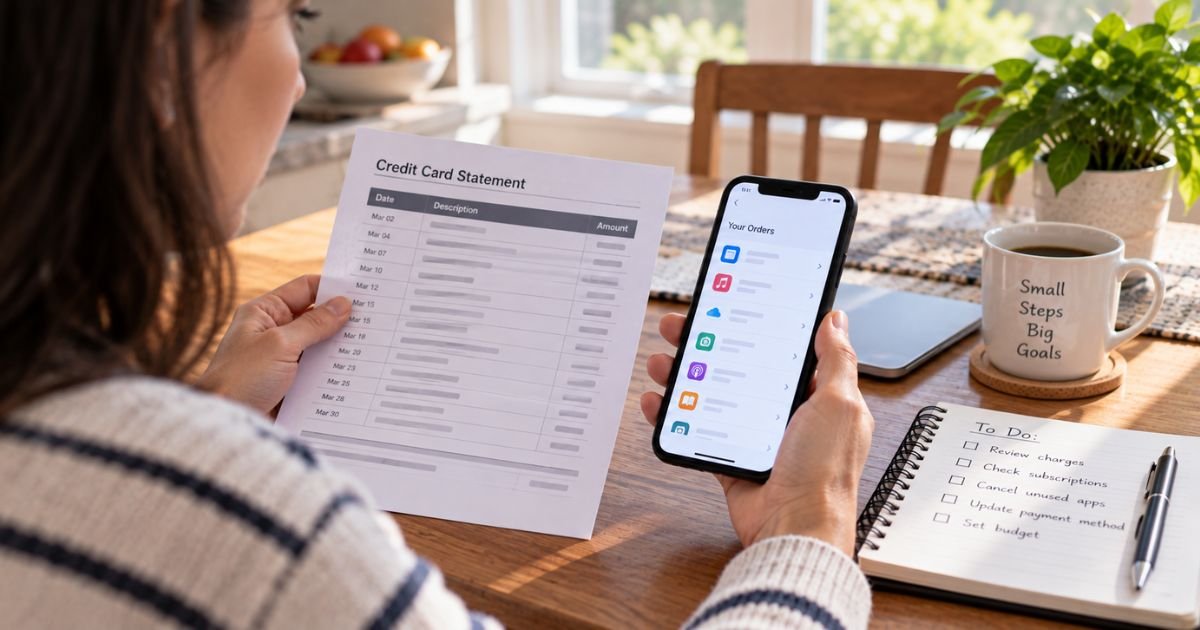
You open your card statement and see Google Play Mountain View. No trip to California. No new gadget on the porch. Just a dollar amount and a city name.
That line is how many banks label a Google payment. The city is the clue. The product name after GOOGLE* tells you what you actually bought.
What a Google Play Mountain View Charge Is
A Google Play Mountain View charge on credit card is a payment processed by Google. Banks often print Mountain View, California because that is where Google LLC is based.
You did not buy a city tour. You paid for digital content, a subscription, or another Google product billed through your Google account.
Google’s help pages say Play purchases generally show on statements as GOOGLE* plus a seller, app, or content label. Your bank may add Mountain View CA after that. Spacing and extra words vary by issuer.
Google also says there is no extra Google fee just for using Play or Drive checkout. You pay the item price, tax, and any listed delivery charge. Your bank may still add its own foreign-transaction fee if it treats the charge that way.
Pending lines can be authorizations, not finished sales. Google says those checks confirm the card works and that funds are available. They are not meant to be paid as a separate bill. Your bank may hold them for 1 to 14 business days.
Statement Text You May See
| What the statement may say | What it often points to |
|---|---|
| GOOGLE * and an app or developer name | Play Store app or in-app purchase |
| GOOGLE *Books, movies, or similar content type | Play Books, movies, or other digital media |
| GOOGLE *GOOGLE or GOOGLE *SERVICES | A Google-owned plan, sometimes YouTube or similar |
| GOOGLE *Google Storage or Google One | Storage subscription |
| GOOGLE *Ads | Advertising spend, not a Play game |
| GOOGLE *TEMPORARY HOLD or a pending authorization | Card check that should drop if no purchase finishes |
| GOOGLE Play … 1600 Amphitheatre … Mountain View CA | Same Google payment with the street address added |
If the line does not start with Google in one of those Play formats, Google says it did not come from Google Play. Call the card issuer about that merchant.
Kids’ games, cloud storage, YouTube Premium, and a forgotten app trial can all land on the same card. The statement city will not sort them for you. Your Google order history will.
How to Find the Exact Purchase
Sign in to the same Google Account that lives on the phone or tablet.
In the Play Store app, tap your profile photo. Open Payments & subscriptions, then Budget & history. Match the date and amount.
On a computer, go to play.google.com. Use Profile, then Payments & subscriptions, then Budget & order history.
Also open payments.google.com. Play history does not list every Google payment. YouTube, Google One, Ads, and other Google checkouts often show under Activity or Subscriptions & services.
If the charge is missing from every account you own, try other family Gmail logins. Shared tablets cause many “mystery” Play bills.
Write down the order number. You will need it for a refund request or a fraud report.
Common Reasons the Charge Appears
A paid app or a one-time in-app item posted a day or two later than the tap.
A free trial ended and the first paid month billed.
A subscription renewed. Play Pass, a game pass, a streaming add-on, or extra Drive storage can all renew without a new tap.
Someone in the house used your unlocked phone. Google treats a family member purchase differently from a stranger using a stolen card.
A pending authorization posted beside the real charge, so the same buy looks doubled until the hold drops.
You added the card to a second Google Account at work or school.
How to Stop Future Google Play Charges
Open Play Store. Go to Payments & subscriptions, then Subscriptions. Cancel each plan you do not want. Canceling generally stops the next renewal. It does not always refund the current period.
Remove the card from payments.google.com if it should not be on file.
Turn on purchase authentication. Google lets you require a password, PIN, or biometric for Play buys. Use it on every device that shares the account.
On a child’s tablet, use a Family Link or supervised account instead of your unlocked adult login.
Revoke Play Store permission on old phones you no longer use.
Canceling inside a game menu is not enough if Play still owns the subscription. Always check the Play subscriptions list.
Refunds and Unrecognized Charges
Google says it does not refund most Play purchases. Exceptions exist and depend on what you bought, when you bought it, and where you live.
For many apps, games, and in-app items, you may request a refund within 48 hours. After that window, Google often points you to the app developer. You can usually request a refund only once on the same paid app.
Request a refund from the order in Budget & history, or use Google’s Play refund form. Google says a decision often arrives within a day and can take up to four business days. Multiple requests on the same order do not speed that up.
If a friend or family member used your account by accident, Google says to request a refund, not to file a stranger-fraud report.
If you did not make the purchase and nobody you know did either, use Google’s unauthorized-purchase process. Google says to report that within 120 days of the transaction. Keep the claim ID from the email.
If the charge is not on any Google Account you control, contact your card issuer’s fraud team first. Google cannot see a card charge that never touched your login.
A refund is not guaranteed. Do not promise yourself the money back before the email arrives.
If You Need the Bank Involved
Call the number on the back of the card when Google has no matching order and the amount keeps repeating.
Ask the issuer to block new Google Play authorizations if the card was stolen. Then add a new card only to accounts you still use.
A bank dispute can run beside a Google claim. Tell both sides if you already requested a Play refund so you do not collect twice.
Watch the statement for 14 business days if the line is still pending. Google says leftover authorizations after that point are a bank question.
How to Keep Play Charges Boring
Review Budget & history once a month.
Put subscriptions on a card you check weekly.
Require authentication for every purchase, including “in-app.”
Keep one Google Account for shopping and another for work mail if that split helps you audit bills.
Remove saved cards from phones you sell or give away.
A $1.99 test charge can be a forgotten pack. A $19.99 monthly line that you cannot find in history deserves a same-day look.
FAQs About Google Play Mountain View Charge
Q. Why does my card say Mountain View if I shopped from home?
A. Mountain View is Google’s headquarters city. Banks print it as the merchant location. The words after GOOGLE* are the better clue to the product.
Q. Is a Google Play Mountain View charge a scam?
A. Often no. It is a common way Google Play and other Google bills appear. It can be fraud if the order is not in your Google history and nobody in the house made it. Match the date and amount first.
Q. How do I get a refund for a Google Play charge?
A. Open the order in Play Budget & history or use Google’s refund request. Many app and in-app refunds are requested within 48 hours. After that, contact the developer. Unauthorized charges have a separate 120-day report path. Refunds are not automatic.
Q. Why do I see two Google charges for one purchase?
A. One line may be a temporary authorization and the other the final sale. Google says authorizations are not extra charges and may linger 1 to 14 business days. Compare both amounts with a single order in your history.
Conclusion
A Google Play Mountain View charge on a credit card is a Google-processed payment with the company’s city on the statement. Open Play history and payments.google.com. Match the date and amount.
Cancel what you do not want. Request a refund only when the policy fits. Call the card issuer if the charge never appears on an account you own.
Disclaimer
This article is for general information only. It is not financial or legal advice. Google Play descriptors, refund windows, and support forms can change. Banks may display merchant text differently. Outcomes vary by purchase type and account. Confirm details in current Google Play Help and your card agreement, and contact Google or your issuer about a specific charge.